# Create Your Business
After successfully signing up for Gamify Route, the next step is to create your business profile. This guide will help you navigate through the process of setting up your business on Gamify Route. Please follow the instructions below to ensure a smooth and successful setup.
### Steps to Create Your Business
#### 1. Log In
* **Sign Up**: Ensure you have successfully signed up for Gamify Route using one of the methods (Email, Google, or Facebook).
* **Login**: Enter your credentials on the login page and sign in to your account.
#### 2. Navigate to Create Your Business Screen
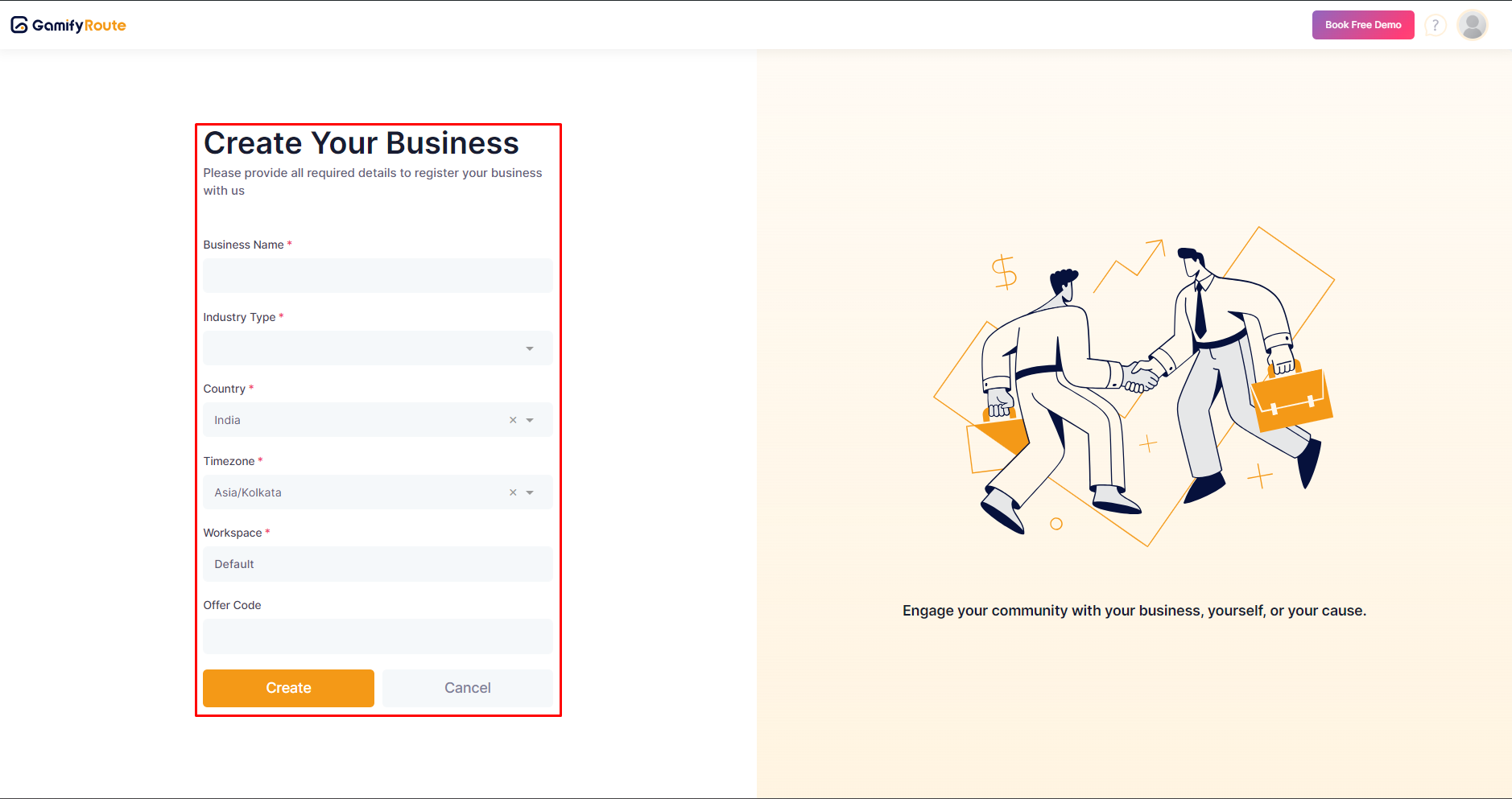
After logging in, you will be redirected to the "Create Your Business" screen. This screen requires you to fill in several details about your business.
#### 3. Fill in Business Details
On the "Create Your Business" screen, you will see a form with several fields. Complete the form as follows:
* **Business Name**: Enter the name of your business.
* **Industry Type**: Select the type of industry your business belongs to from the drop-down menu.
* **Country**: Choose your country of operation.
* **Timezone**: Select the appropriate time zone for your business.
* **Workspace**: This field is set to "Default." You can change it if you have multiple workspaces.
* **Offer Code** (Optional): If you have an offer code, enter it here.
#### 4. Submit Your Information
Once you have filled in all the required fields:
* **Create**: Click on the "Create" button to submit your business information.
* **Cancel**: If you need to make changes or are not ready to submit, click on the "Cancel" button.
#### 5. Confirmation
After clicking "Create," you will receive a confirmation that your business has been successfully created. You can now proceed to explore other features and settings in Gamify Route.
***
For further assistance, please contact our support team at .
---
# Agent Instructions: Querying This Documentation
If you need additional information that is not directly available in this page, you can query the documentation dynamically by asking a question.
Perform an HTTP GET request on the current page URL with the `ask` query parameter:
```
GET https://docs.gamifyroute.com/kb/getting-started/create-your-business.md?ask=
```
The question should be specific, self-contained, and written in natural language.
The response will contain a direct answer to the question and relevant excerpts and sources from the documentation.
Use this mechanism when the answer is not explicitly present in the current page, you need clarification or additional context, or you want to retrieve related documentation sections.